📘 How to Use
Complete guide to using A Beautiful Mind AI Bot on Telegram
Introduction
Welcome to the official guide for A Beautiful Mind AI Bot. This document will walk you step by step from starting the bot to receiving your first trading signals, including how to configure the tickers you're interested in.
TradingView Webhook (correct endpoint): https://dev.abeautifulmind.ai/webhook
Do not use the domain root — TradingView must POST to
/webhook.Find and Start the Bot
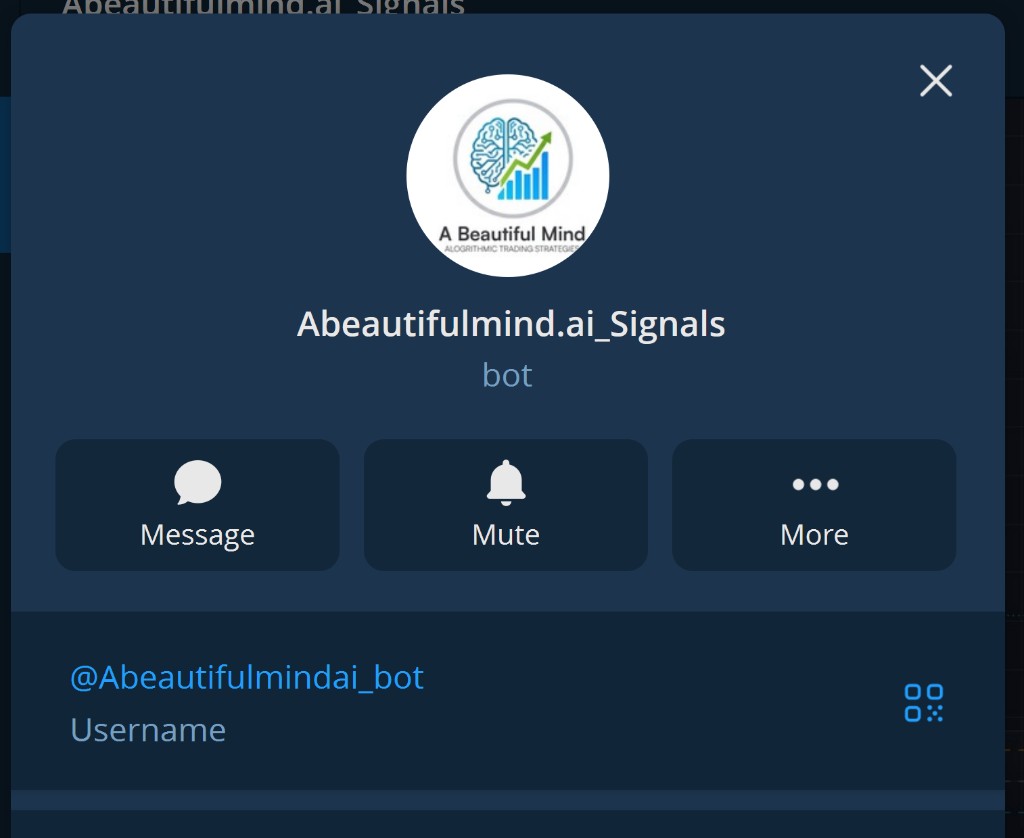
Search for the bot on Telegram using the username @Abeautifulmindai_bot or tap the invite link. Once the chat opens, press Start.
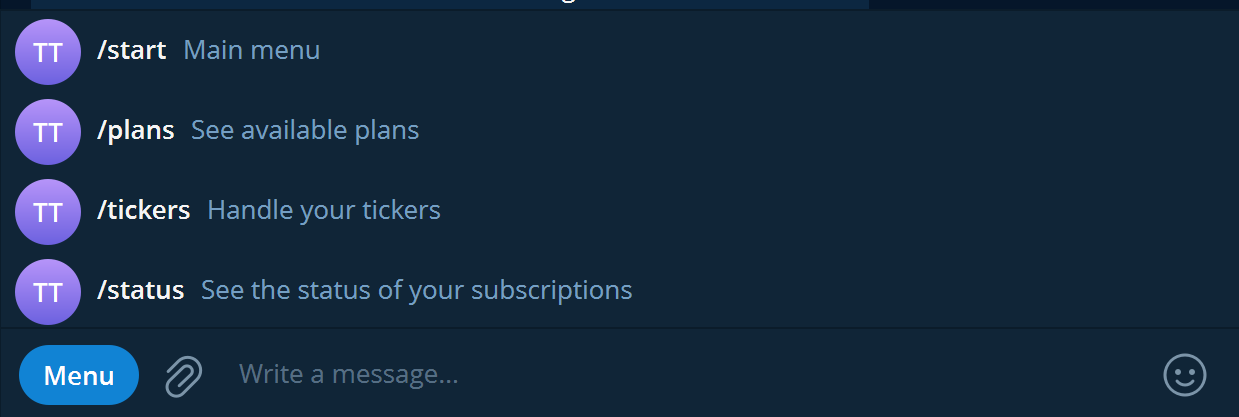
You can use the following quick commands at any time:
- /start – Main menu
- /plans – View available plans
- /tickers – Manage your tickers
- /status – Subscription status
Welcome Message and Disclaimer
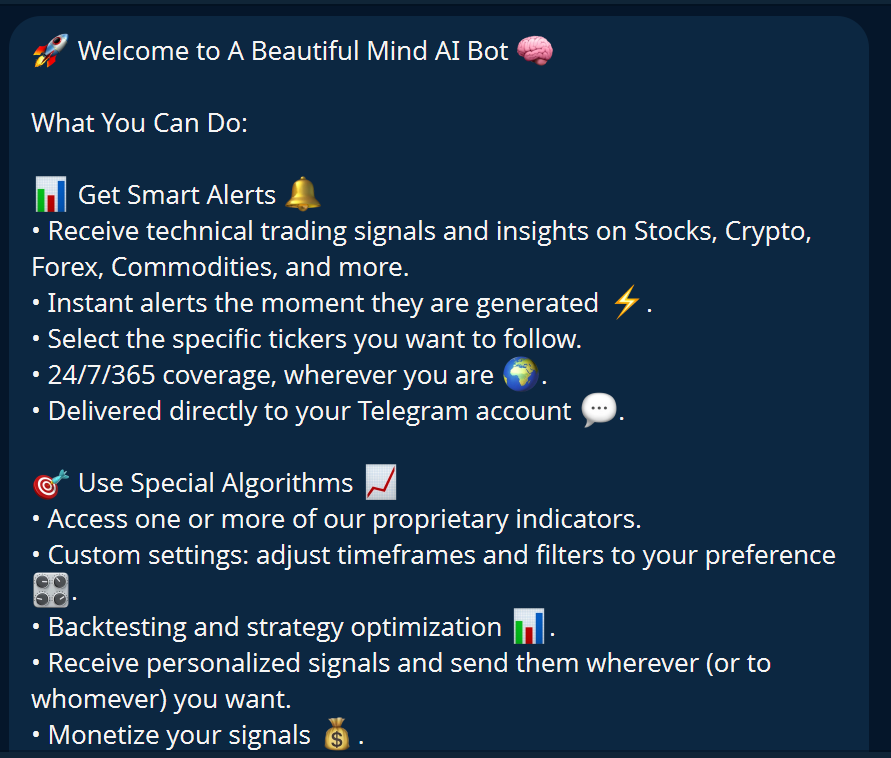
After pressing Start, the bot will send a welcome message with a full overview of the available features.
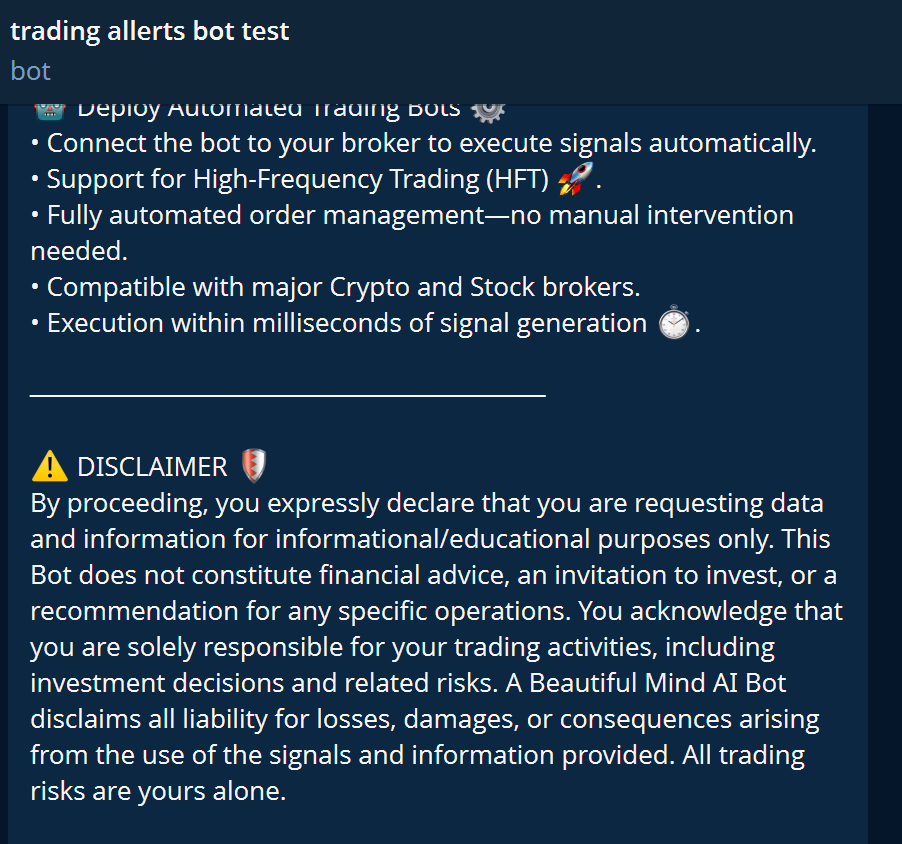
The signals and content provided are exclusively for informational/educational purposes. This bot does not constitute financial advice, an invitation to invest, or a recommendation for specific trades.
Explore the Main Menu
At the bottom of the chat you'll find the Menu button, which opens the inline keyboard with all the main options.
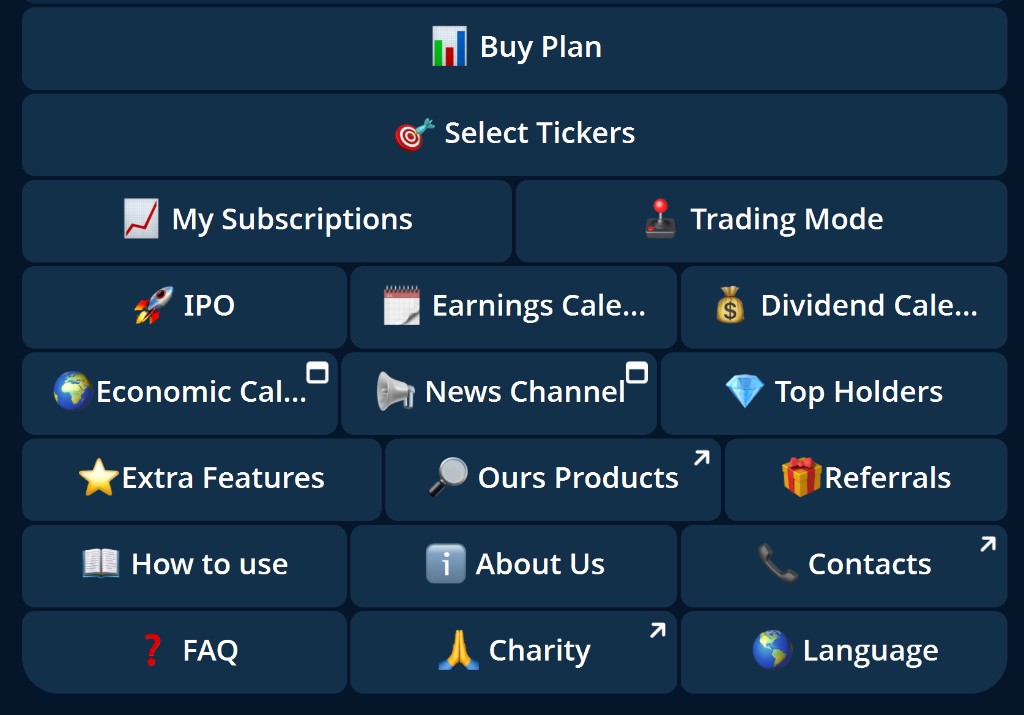
- 📊 Buy Plan – Purchase a new signal plan
- 🎯 Select Tickers – Choose which tickers to follow
- 📈 My Subscriptions – Manage your active subscriptions
- 🚀 IPO – IPO calendar
- 📅 Earnings Calendar – Earnings calendar
- 💰 Dividend Calendar – Dividend calendar
- 🌍 Economic Calendar – Economic calendar
- 📢 News Channel – News channel
Buy a Plan – Engine and Category
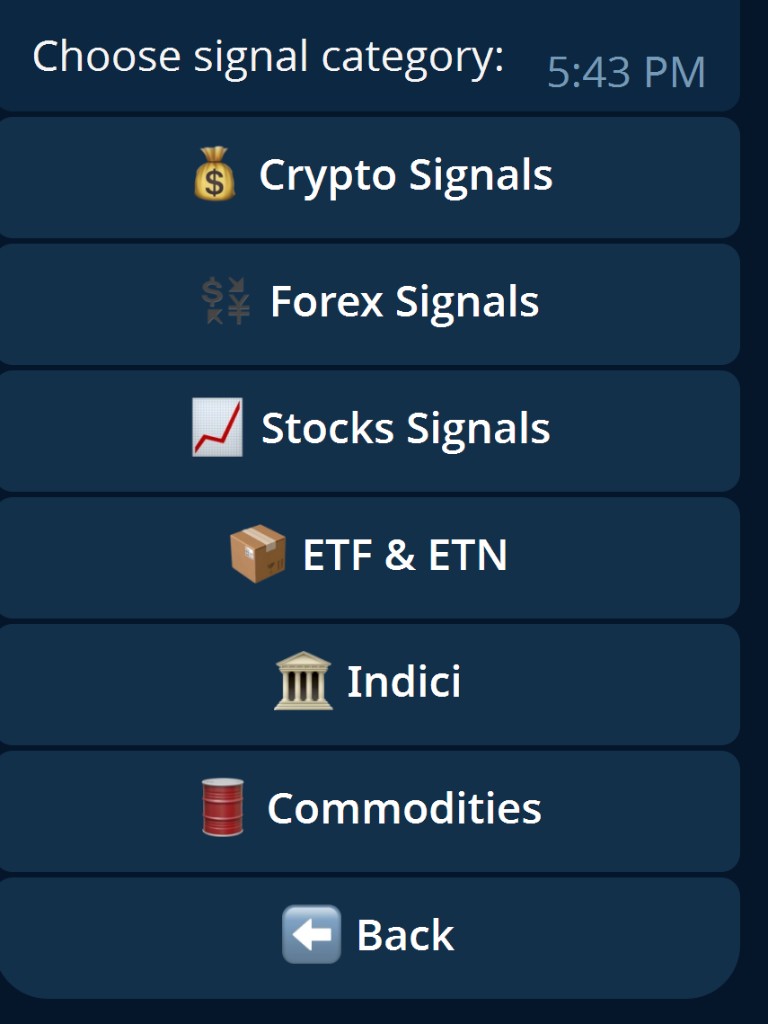
To get started, press 📊 Buy Plan or use the /plans command. For Telegram signals, first choose Signal, then the engine: Pro Suite or TurnPoint Pro. The list of available market categories will then open.
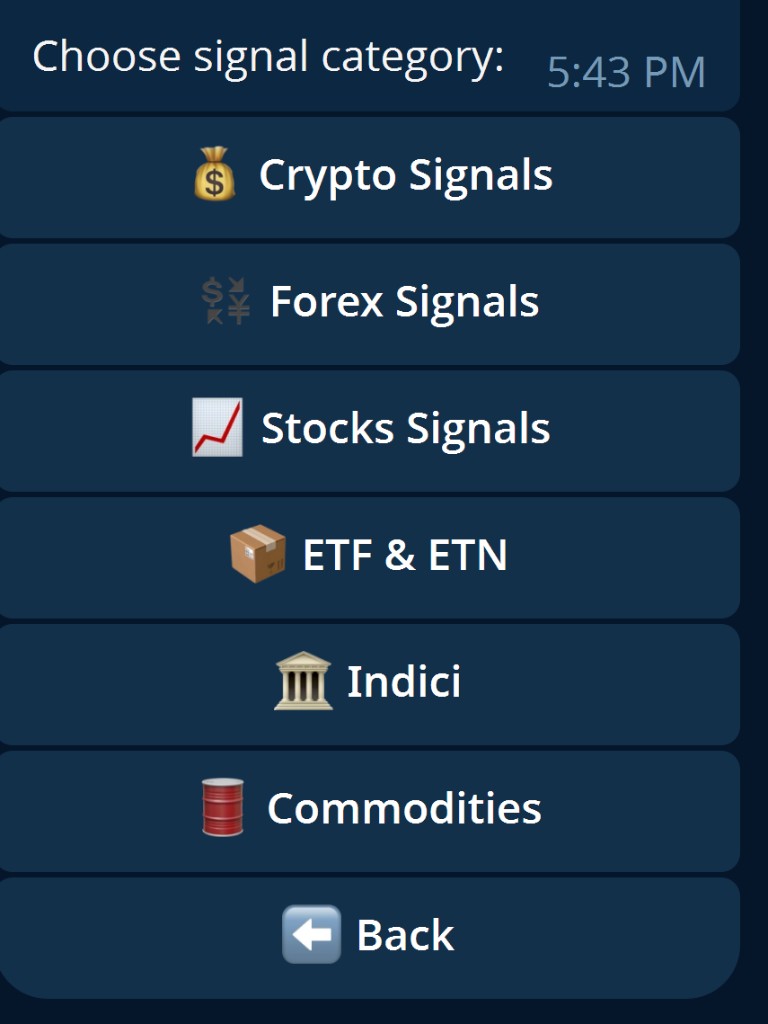
- 🔀 Signal engine – Pro Suite (classic) or TurnPoint Pro (turn / exhaustion)
- 💰 Crypto Signals – Cryptocurrency signals
- 💱 Forex Signals – Forex market signals
- 📈 Stocks Signals – Stock signals
- 📦 ETF & ETN – ETF and ETN signals
- 🏛 Indices – Market index signals
- 🛢 Commodities – Raw materials signals
- 📊 Pro Suite Indicator – Proprietary indicator (TradingView DIY)
- ⚙️ Dynascale – Dynascale algorithm
- 🏦 TradeLink Bridge – Broker connection
Choose the Subscription Duration
After choosing the category, the bot will ask you to select the subscription period.
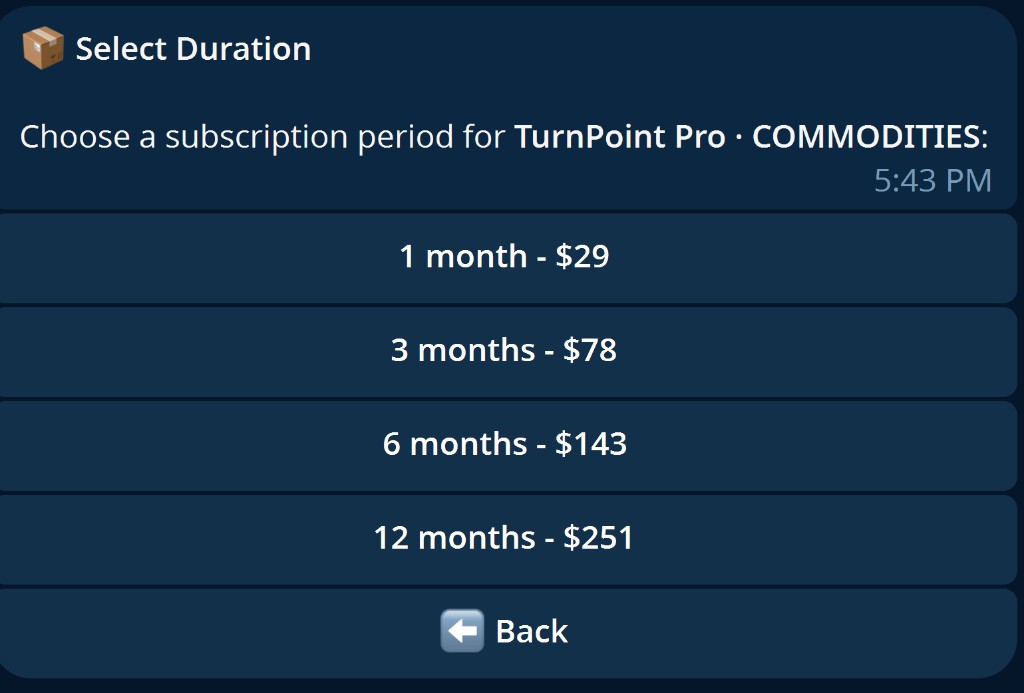
- 1 month – $49
- 3 months – $132
- 6 months – $241
- 12 months – $423
Accept the Disclaimer
Before proceeding to payment, the bot shows a summary of your selection and requires explicit acceptance of the risk disclaimer.
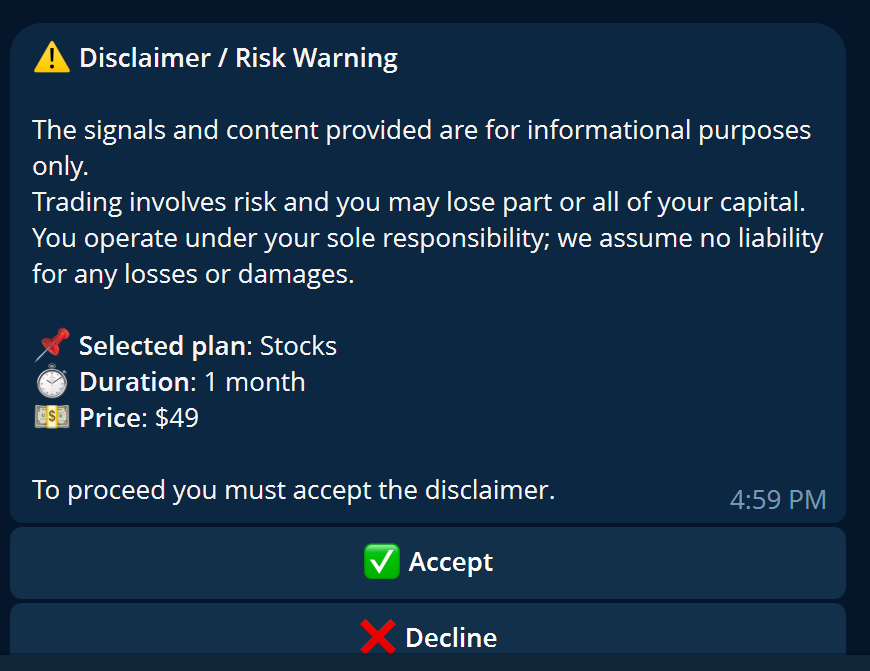
📌 Plan: Stocks
⏱ Duration: 1 month
💵 Price: $49
To proceed you must press ✅ Accept.
Choose the Payment Method
After accepting the disclaimer, the payment method selection screen will appear.
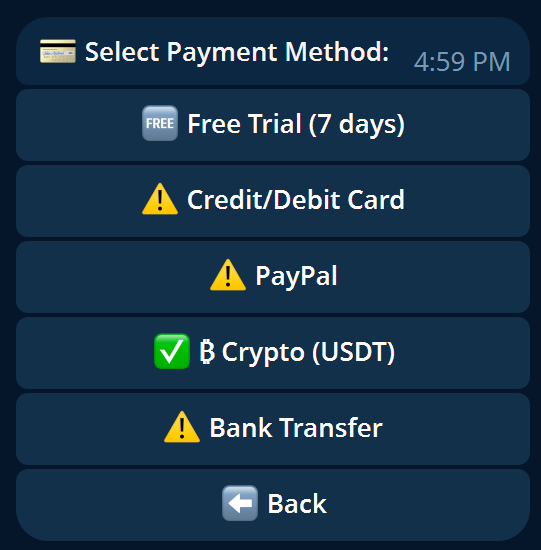
- 🆓 Free Trial – 14-day free trial
- ⚠️ Credit/Debit Card – Credit or debit card payment
- ⚠️ PayPal – Payment via PayPal
- ✅ Crypto USDT – Cryptocurrency payment
- ⚠️ Bank Transfer – Bank wire transfer
Complete the Crypto Payment
By selecting Crypto USDT, the bot provides wallet addresses for the main blockchain networks. Send only the exact amount corresponding to the chosen plan.
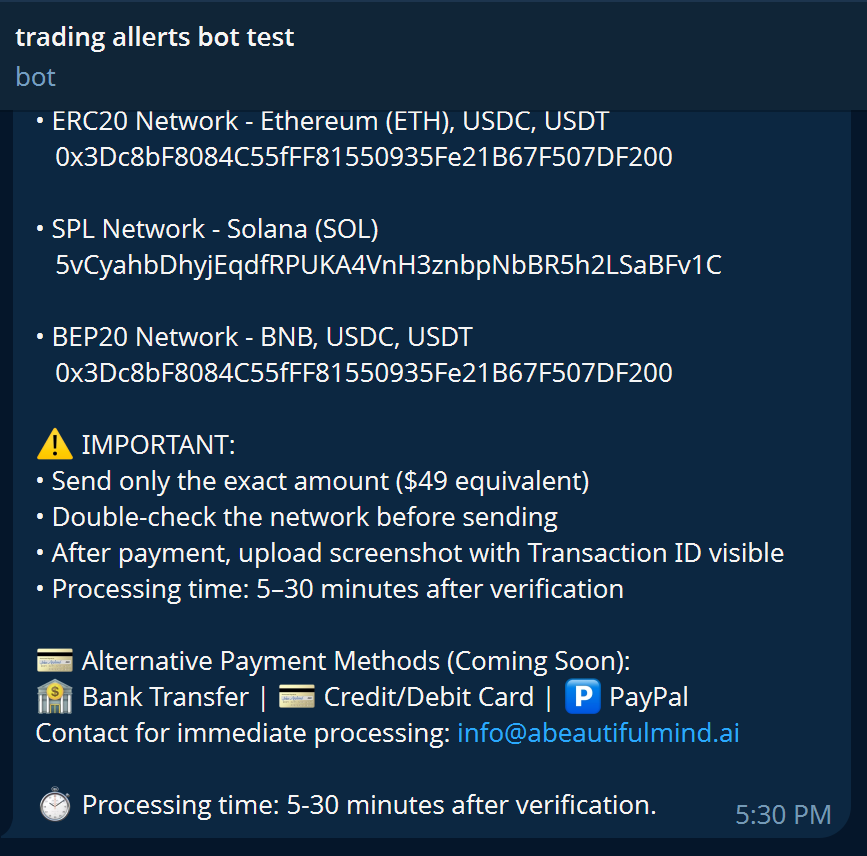
Wallet Addresses
🔷 ERC20 Network
🟣 SPL Network
🟡 BEP20 Network
- Send only the exact amount.
- Always verify the network before sending.
- Upload a screenshot with the Transaction ID visible.
- Processing time: 5–30 minutes after verification.
Upload the Payment Receipt
After making the payment, you must send proof of the transaction to the bot so the administrator can verify it and activate the subscription.
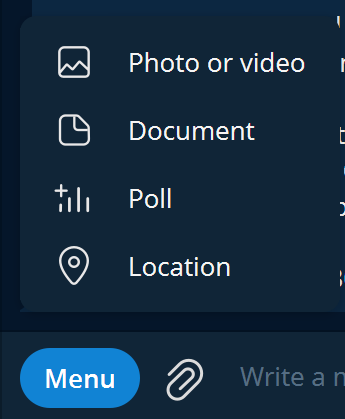
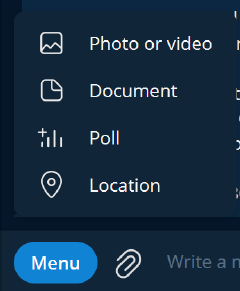
- Tap the paperclip 📎 in the chat.
- Select Photo or video, or Document.
- Upload the transaction screenshot.
- Make sure the Transaction ID is visible.
- Tap Send.
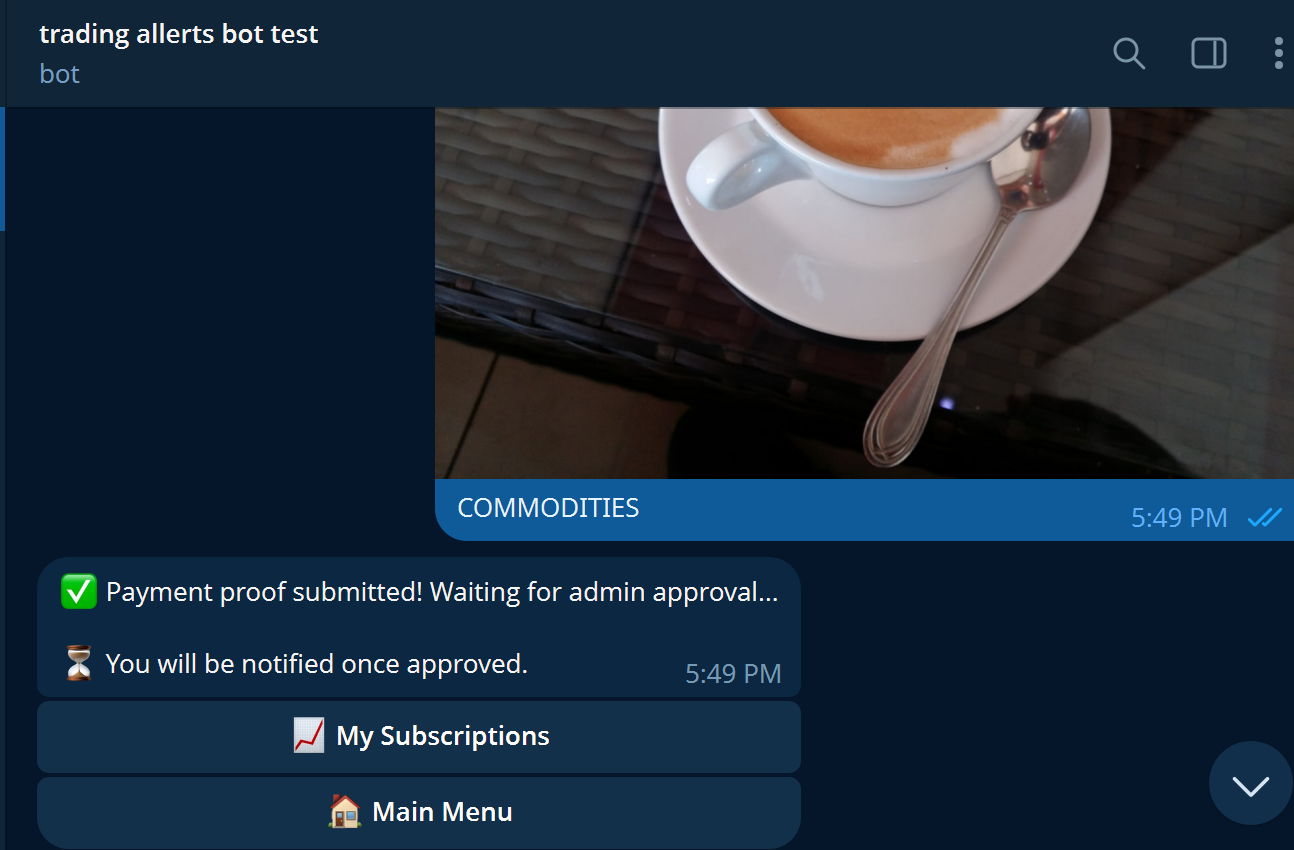
Waiting for admin approval. You will be notified once approved.
Waiting for Activation
After uploading the receipt, the admin team will verify the transaction. The bot will automatically notify you once the payment is approved.
- Standard: 5–30 minutes after verification
- Maximum: up to 24 hours during periods of high demand
Payment Approved – Plan Activation
Once the payment is approved, you'll receive a confirmation message with the details of your active subscription.
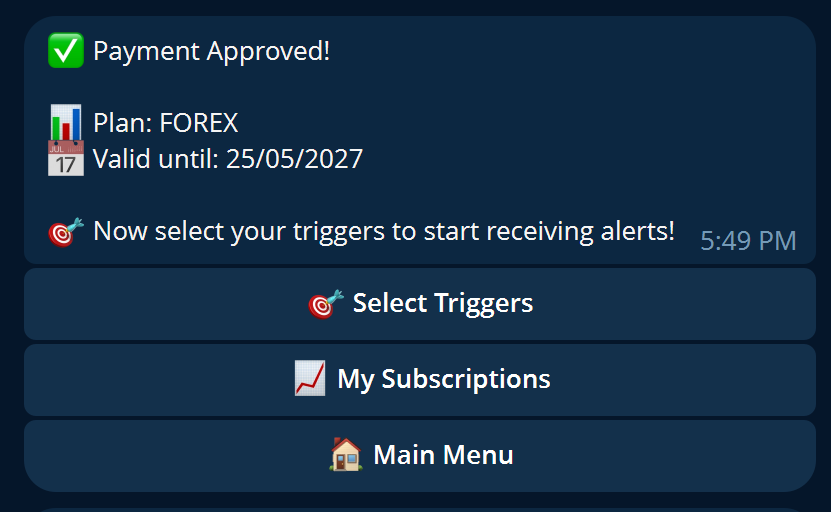
📊 Plan: FOREX
📅 Valid until: 25/05/2027
🎯 Now select your triggers to start receiving alerts.
Select Triggers – Categories
After tapping Select Triggers, the bot will show you the asset categories available within your activated plan.
- 📁 5G Telecom
- 📁 Aerospace
- 📁 Artificial Intelligence
- 📁 Biotech
- 📁 Cannabis
- 📁 Clean Energy
- 📁 Cybersecurity
- 📁 EV Mobility
Select Individual Tickers
Inside each category you'll find the list of individual tickers. You can select the ones you're interested in to receive the related alerts.
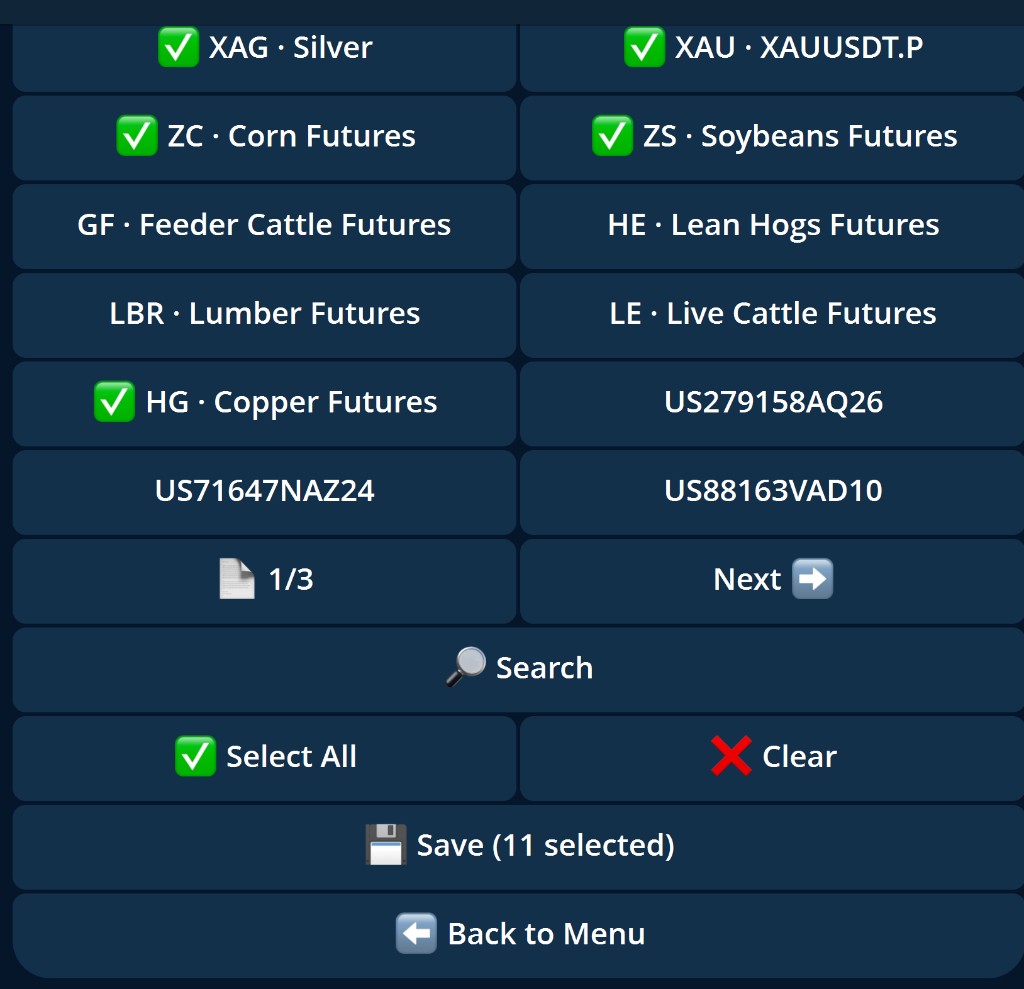
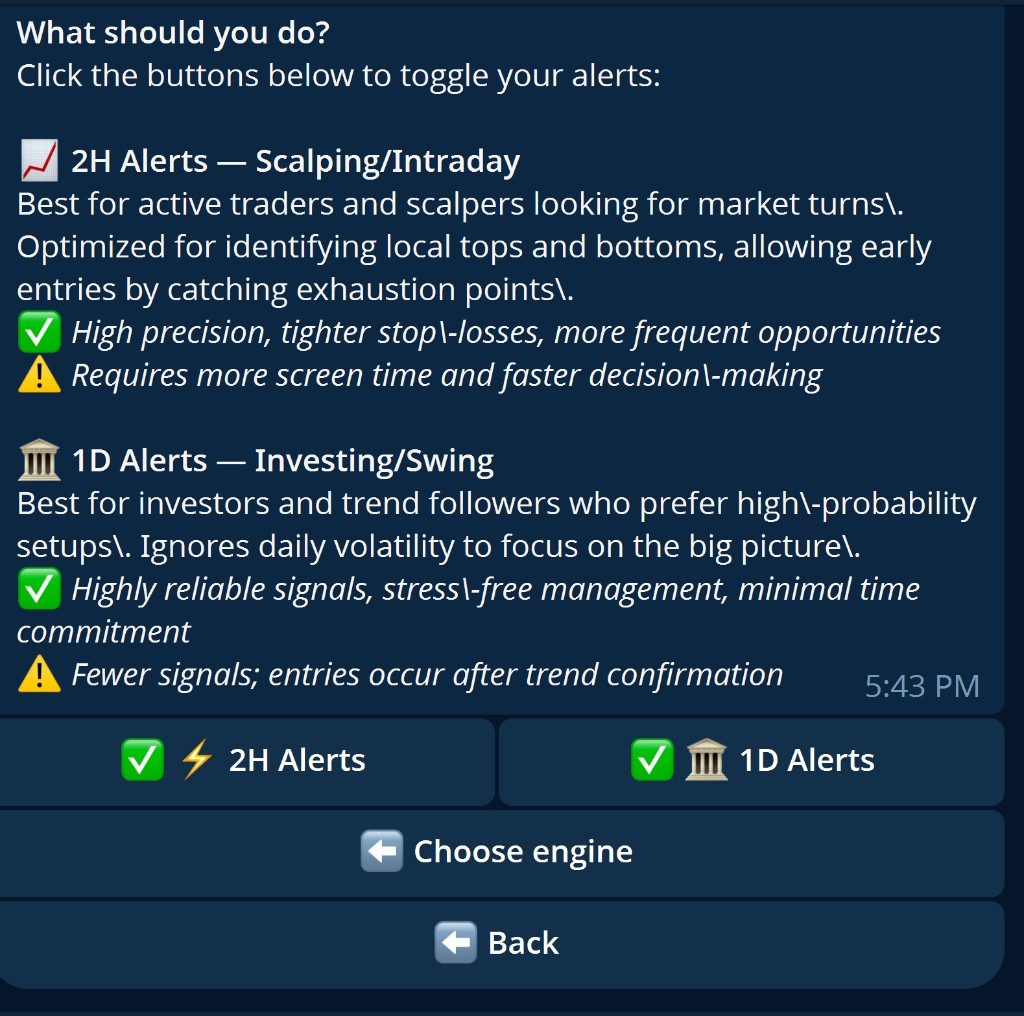
- ✅ Green check – ticker selected
- ⬜ Empty box – ticker not selected
- 🔍 Search – look up a specific ticker
- ✅ Select All – select every ticker
- ❌ Clear – deselect every ticker
- 💾 Save – save your configuration
How to read signals (TurnPoint)
Alerts are informational only. They are not financial advice, not an order to execute, and they do not guarantee any outcome. The same guide is in the bot: How to use → How to read signals.
1) Hierarchy — stars (the most important part)
Stars show how relevant or rare the reading is in that context — not how "sure" a reversal is.
- ⭐ — basic
- ⭐⭐ — good
- ⭐⭐⭐ — strong
- ⭐⭐⭐⭐ — very strong
- ⭐⭐⭐⭐⭐ — maximum
+ / ++ = extra weight on the same signal (even higher priority).
2) Direction and colors
- 🟢 LONG = upside reading
- 🔴 SHORT = downside reading
Other label colors (lighter/darker tones, blue/purple, etc.) help you see signal visual weight at a glance. More intense ≠ more "correct": only more noticeable or rarer.
3) Alert fields
Demo example:
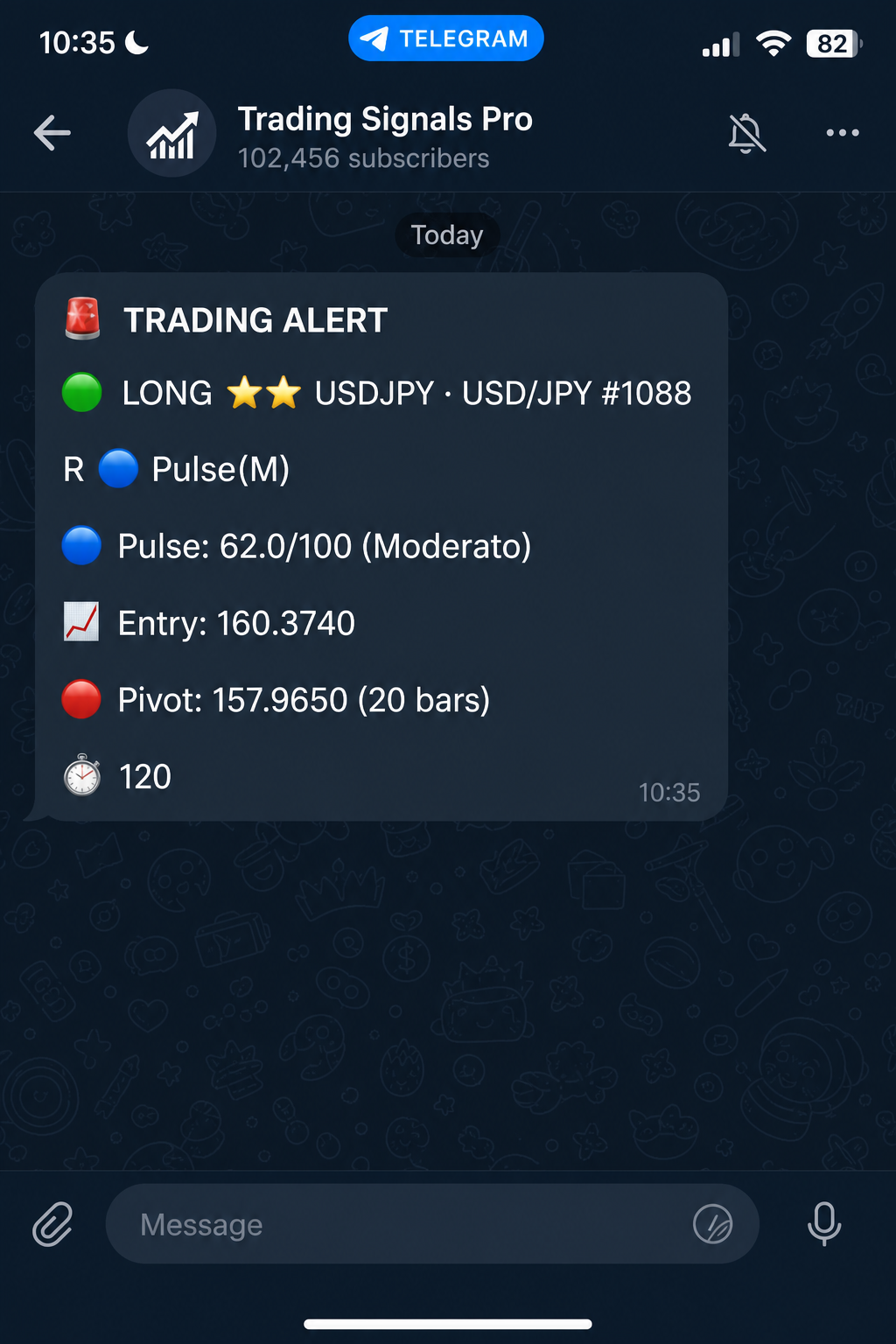
🟢 LONG ⭐⭐ USDJPY · USD/JPY #1088
R 🔵 Pulse(M)
🔵 Pulse: 62.0/100 (Moderate)
📈 Entry: 160.3740
🔴 Pivot: 157.9650 (20 bars)
⏱️ 120
- Stars — attention priority (see above).
- Pulse x/100 — higher = more intense reading. The value can also go past usual thresholds; (Moderate)/(Extreme) or (M)/(E) are intensity labels, not a guarantee.
- Entry — indicative price when the alert arrived, not a mandatory entry instruction.
- Pivot — reference level in the message; use as context, not as an order.
- ⏱️ (e.g. 120) — signal timeframe in minutes (120 = 2H). Always check it.
- Time in the message — in UTC (not your phone's local time, if different).
- Chart link — opens the symbol on TradingView for visual context.
4) After the signal
Later updates (confirm / exit / timeout) are part of the alert lifecycle — not new Buy/Sell advice.
5) Sensible use
Market context → signal → your own risk management. You are responsible for your decisions.
Support and Contacts
Need help? Contact us:
- 📧 Email: info@abeautifulmind.ai
- 📞 Use the Contacts button in the bot's main menu
- ❓ Check the FAQ section